Below is a dynamic alert snippet generator that is synced with the settings you save in the perps dashboard panel. Tap the button below, tap profile, tap copy and paste it in the message box on TradingView or other system.
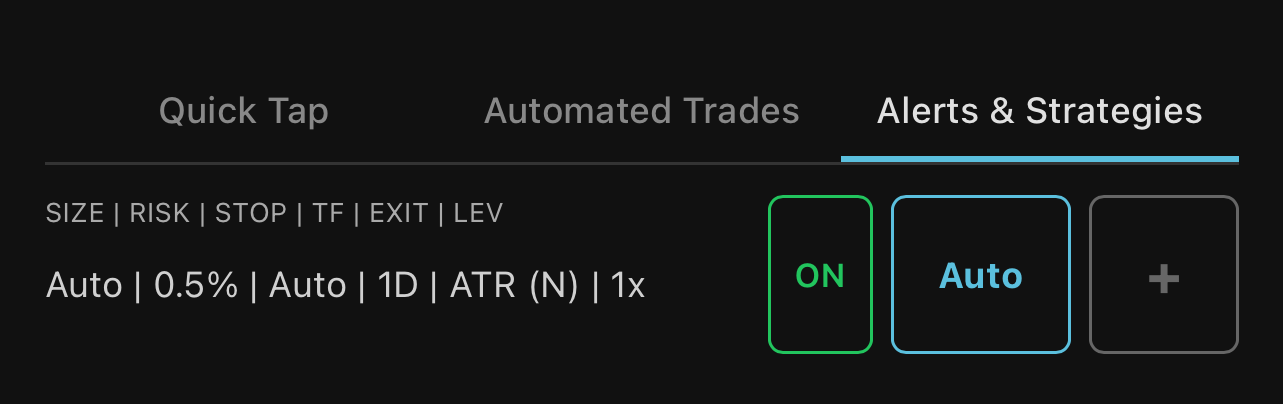
To run your own custom settings, press the [+] button, follow the modals, save the name and it will be an option added below. Double tap the [+] button to delete a saved profile.
The Alerts & Strategies guide covers:
- Bot Mode (your bot sends its own closes) vs ACTIVATE ON (entries only, 3-phase engine manages the close)
- Step-by-step TradingView alert setup
- Free open-source BTC strategy template
Not using TradingView? See the Pure Webhooks guide.
Below is a dynamic alert snippet generator that is synced with the settings you save in the perps dashboard panel. Tap the button below, tap profile, tap copy and paste it in the message box on TradingView or other system.
Select a profile for each direction. Auto uses your Alerts & Strategies dropdown setting. Named profiles override with saved risk, sizing, and exit settings.
New here? The Alerts & Strategies page has step-by-step TradingView alert setup. Not using TradingView? See the Pure Webhooks guide.
Select a profile for each direction. Auto uses your Alerts & Strategies dropdown setting. Named profiles override with saved risk, sizing, and exit settings.
New here? The Alerts & Strategies page has step-by-step TradingView alert setup. Not using TradingView? See the Pure Webhooks guide.
Below is a dynamic alert snippet generator that is synced with the settings you save in the perps dashboard panel. Tap the button below, tap profile, tap copy and paste it in the message box on TradingView or other system.
Select a profile for the BUY snippet. Close snippets execute partial or full sells at any level using a TradingView alert on an indicator, trendline, or price level.
New here? The Alerts & Strategies page has step-by-step TradingView alert setup. Not using TradingView? See the Pure Webhooks guide.
Select a profile for the BUY snippet. Close snippets execute partial or full sells at any level using a TradingView alert on an indicator, trendline, or price level.
New here? The Alerts & Strategies page has step-by-step TradingView alert setup. Not using TradingView? See the Pure Webhooks guide.
Snippets use TradingView's built-in placeholders because they are simple, reliable, and resolve automatically when the alert fires. No custom syntax to learn.
To avoid errors, one-click copy your snippet directly from the tabs here and paste it in the Message box for strategies, or the alert message for indicator and drawing alerts. Questions?
HELPFUL HINTS
1. Case-sensitive placeholders
TradingView placeholders must be lowercase. Use
TradingView placeholders must be lowercase. Use
{"{ticker}"}, not {"{TICKER}"}. Uppercase won't resolve and the trade will fail with "no ticker."2. Ticker mapping
hypr() cleans and maps TradingView tickers automatically. Suffixes like USDT, USDC, USD, PERP, and TradingView's
hypr() cleans and maps TradingView tickers automatically. Suffixes like USDT, USDC, USD, PERP, and TradingView's
.P perpetual marker are stripped, so BTCUSDT, BTCUSDC, BTCUSDC.P, BTCUSD, and BTC all work. For XYZ assets (commodities, stocks), common TradingView names are mapped to Hyperliquid names: XAUUSD to GOLD, XAGUSD to SILVER, USOIL to CL, etc. If your ticker is not recognized, enter the Hyperliquid name directly in the snippet (e.g. GOLD instead of XAU). Check the asset name on the Hyperliquid exchange if unsure.3. XYZ asset support
Webhook execution (open, close, sizing) works on all XYZ assets, and so does hypr(rsk, be, atr) automated trade management. XYZ price and candle data now flow through the same Hyperliquid feed as regular perps, so the server-side trade engine monitors XYZ positions the same way. Newly listed assets may need a short wait until they have enough candle history to arm.
Webhook execution (open, close, sizing) works on all XYZ assets, and so does hypr(rsk, be, atr) automated trade management. XYZ price and candle data now flow through the same Hyperliquid feed as regular perps, so the server-side trade engine monitors XYZ positions the same way. Newly listed assets may need a short wait until they have enough candle history to arm.
4. Test before you trade
Paste
Paste
{"action":"test"} as your message and fire the alert. If the webhook bell shows "Webhook connected," the URL is working. Swap in your real snippet after.5. What each part of a snippet does
Every snippet tells hypr() four things. When TradingView fires your alert, hypr() reads these and executes the trade for you:
Every snippet tells hypr() four things. When TradingView fires your alert, hypr() reads these and executes the trade for you:
market - where to trade. PERPS for perpetual futures, SPOT for spot tokens. hypr() routes the order to the correct Hyperliquid market.
ticker - what to trade. TradingView fills this in automatically from the chart when the alert fires. You never need to type a ticker name yourself.
position - what action to take. LONG opens a buy, SHORT opens a sell, FLAT closes the position. hypr() sizes the trade, places the order, and sets your stop loss and take profit automatically.
profile (optional) - the exact name of one of your saved profiles in the app. Every account starts with four. Auto Prop (0.5% risk), Auto Edge (1.5%), and Auto Degen (3%) all arm the systematic trade engine on the 1D timeframe with auto sizing and auto stop distance, so you send entries only and the engine manages the close. Bot 1 is a plain preset ($1,000 size, 3.5% stop, 5.25% TP, 1x, no engine) for strategies that send their own closes. Add your own with the [+] button on the dashboard. Name a profile per bot to review each one's performance on its own. If you leave profile out of the snippet, hypr() uses whatever is selected in your Alerts & Strategies dropdown.
6. Webhook response time
hypr() responds to TradingView in under 10ms, then executes the trade in the background. TradingView has a ~3 second timeout; you will never hit it.
hypr() responds to TradingView in under 10ms, then executes the trade in the background. TradingView has a ~3 second timeout; you will never hit it.